How to filter and track leads
Updated
Overview
The Leads page lets you filter your list, save views as segments and update each lead as you work. This guide shows you how to filter leads, update status and tags, and log activity and follow-up tasks.
Video walkthrough
Steps
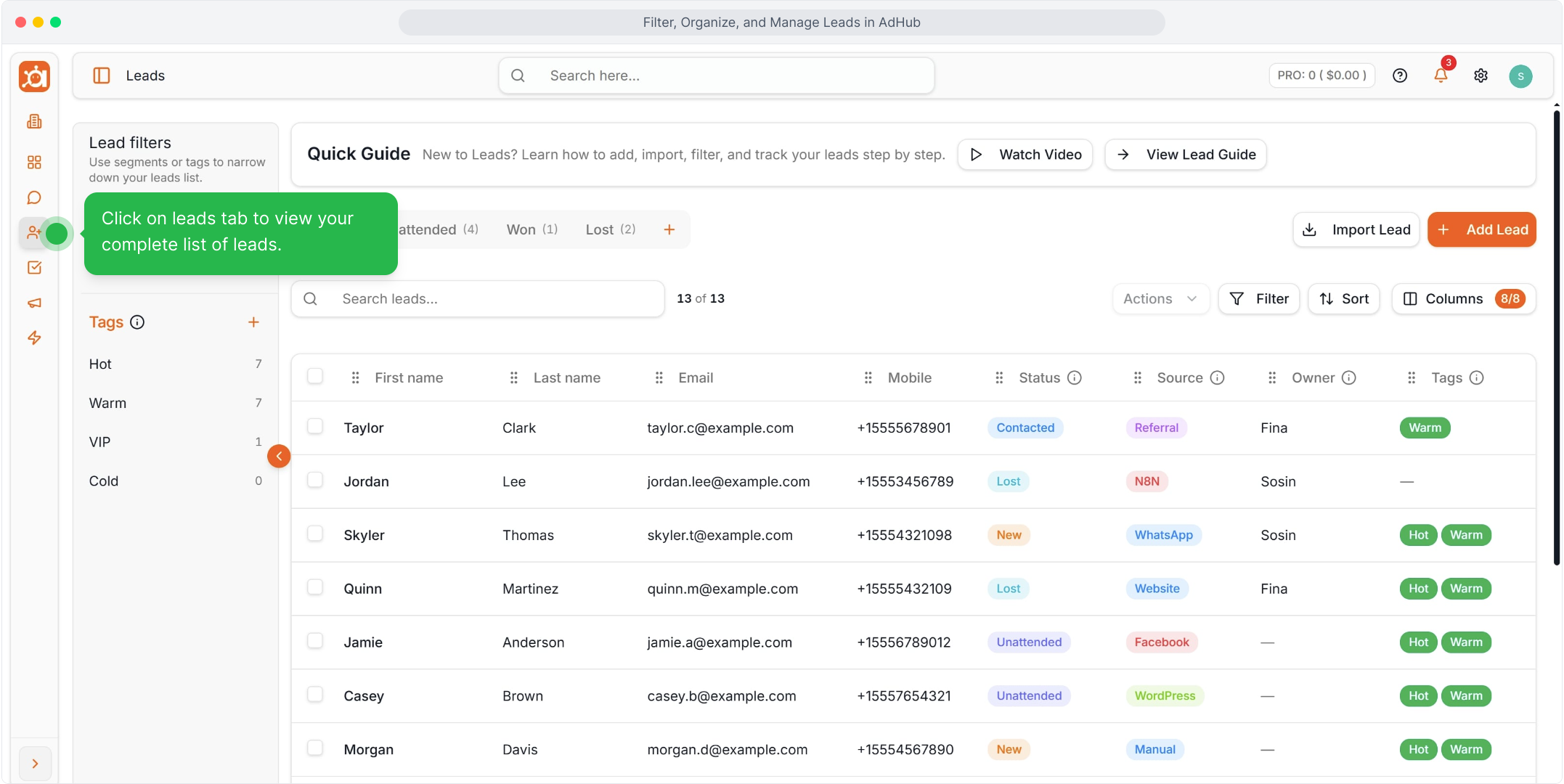
Step 1 — Open the leads list
Click Leads in the sidebar to see your full list.
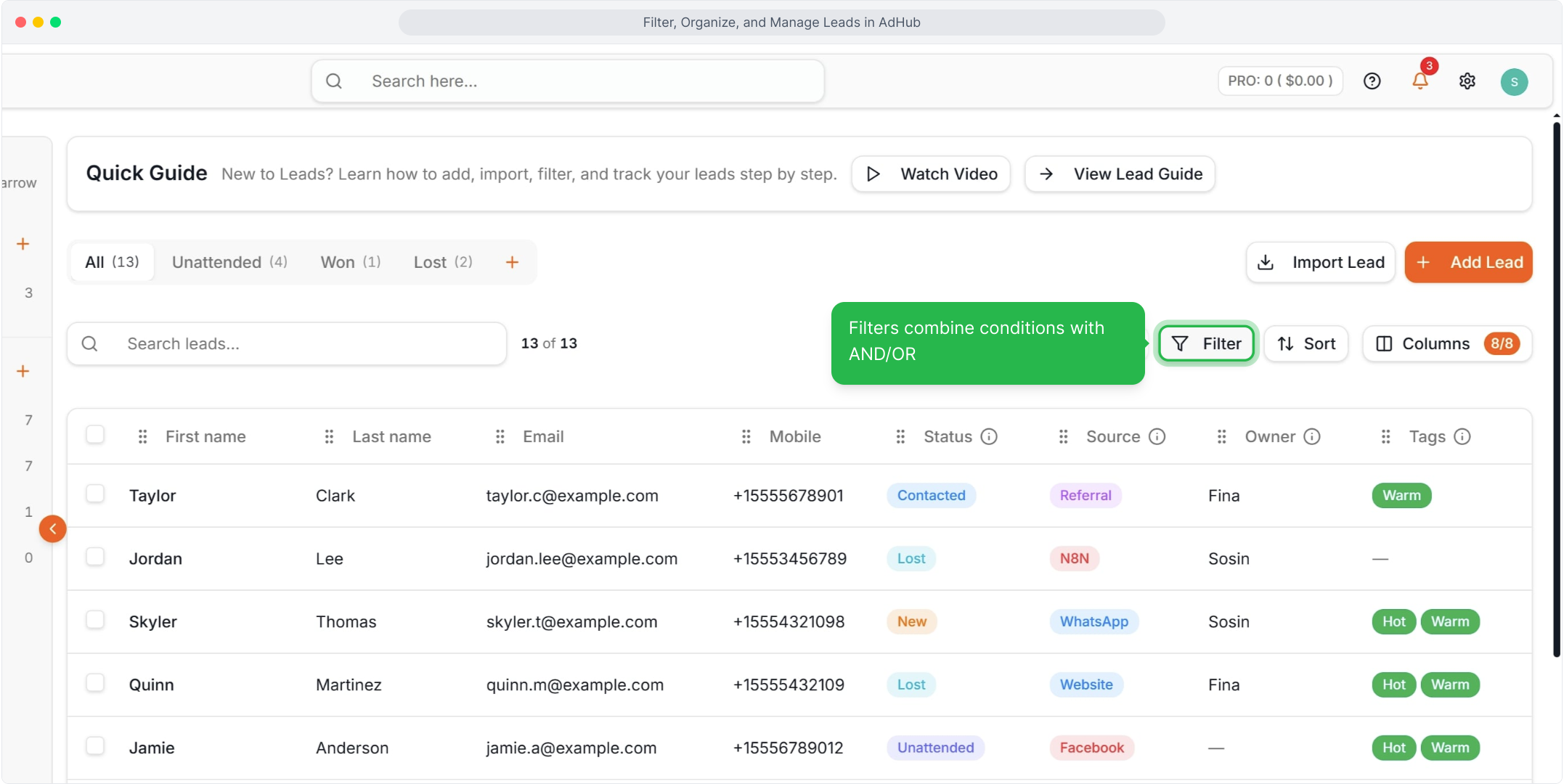
Step 2 — Click Filter
Click Filter on the list toolbar, next to Sort and Columns.
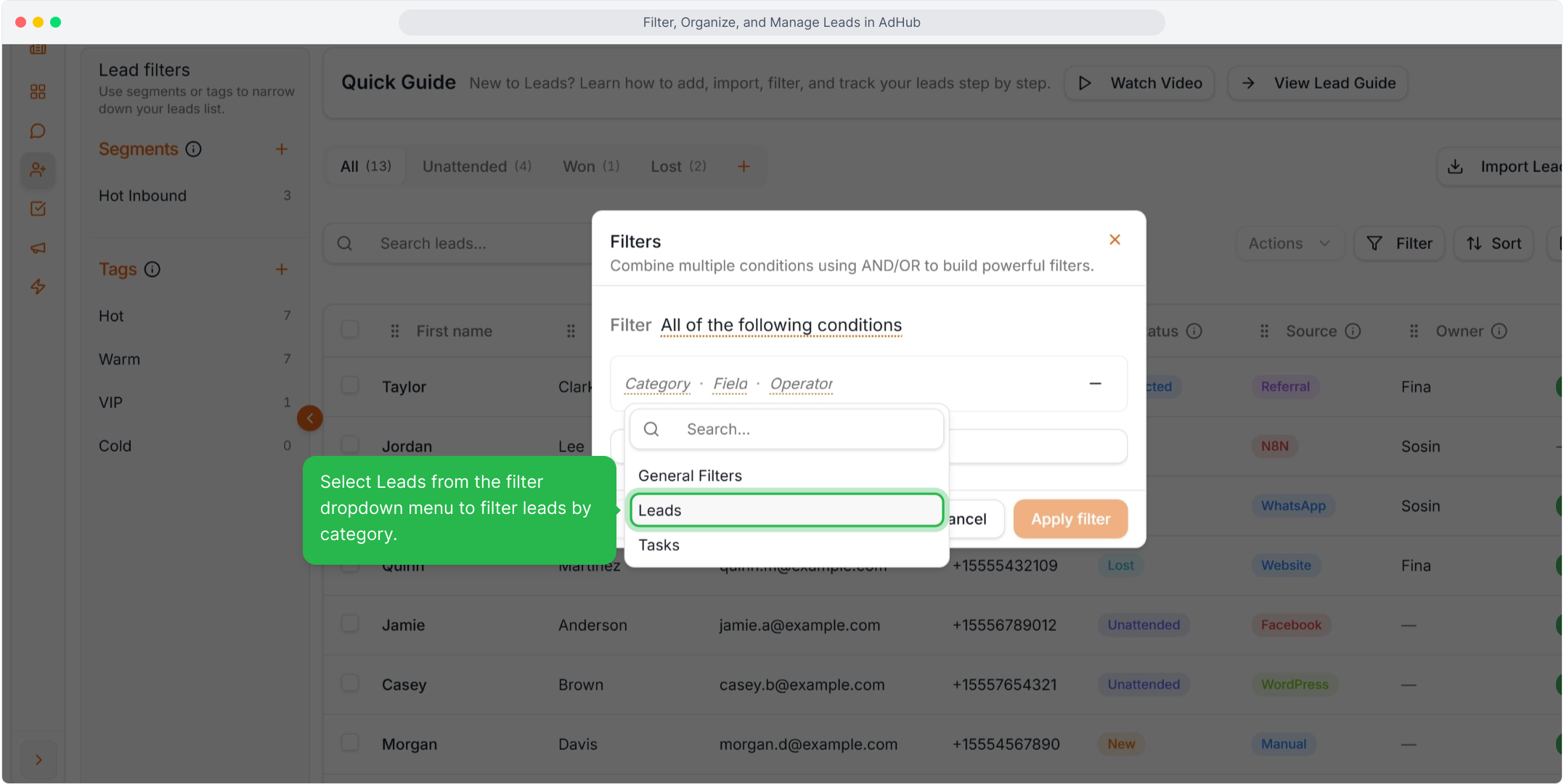
Step 3 — Choose the Leads category
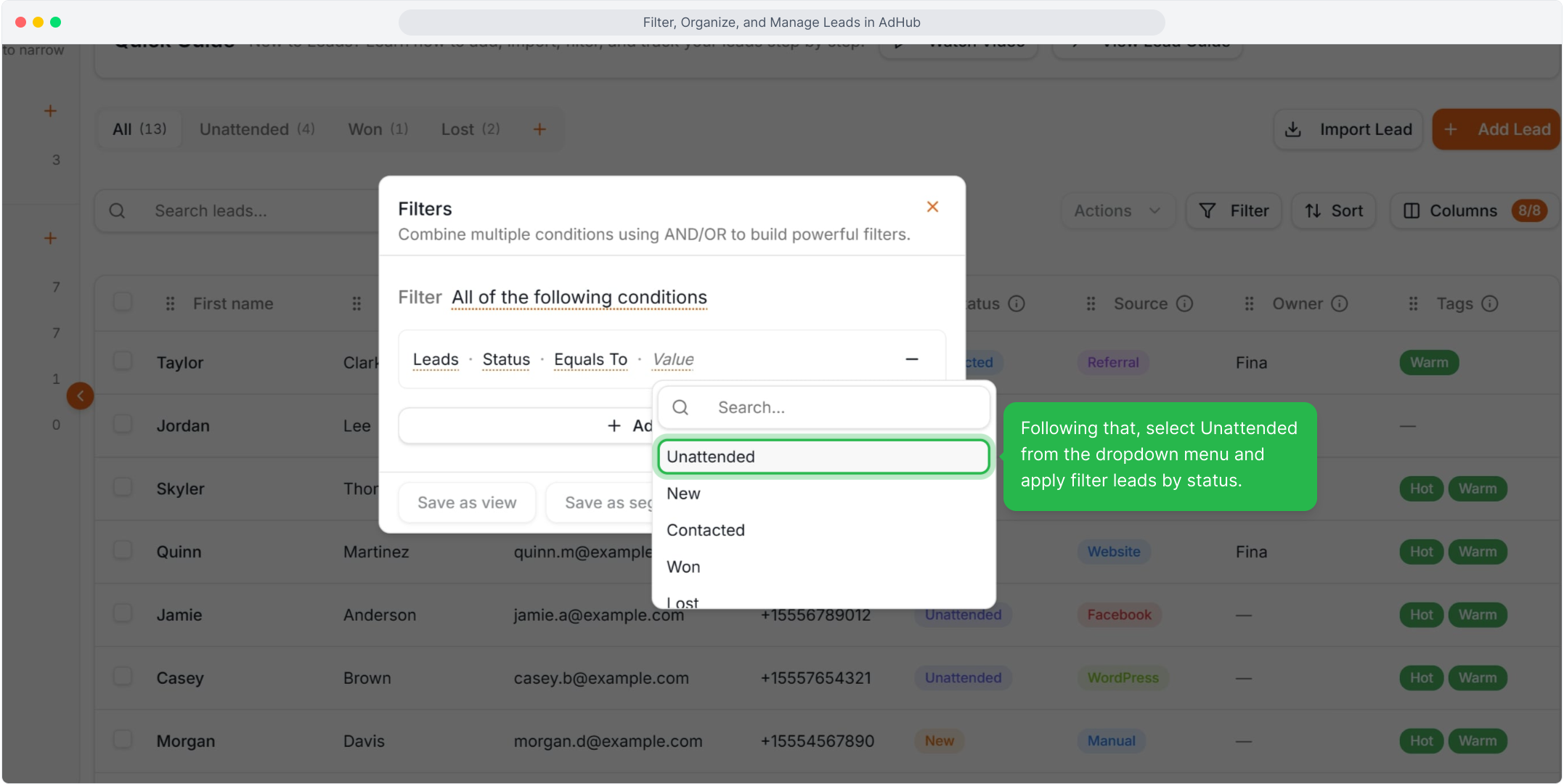
In the filter dialog, select Leads as the category.
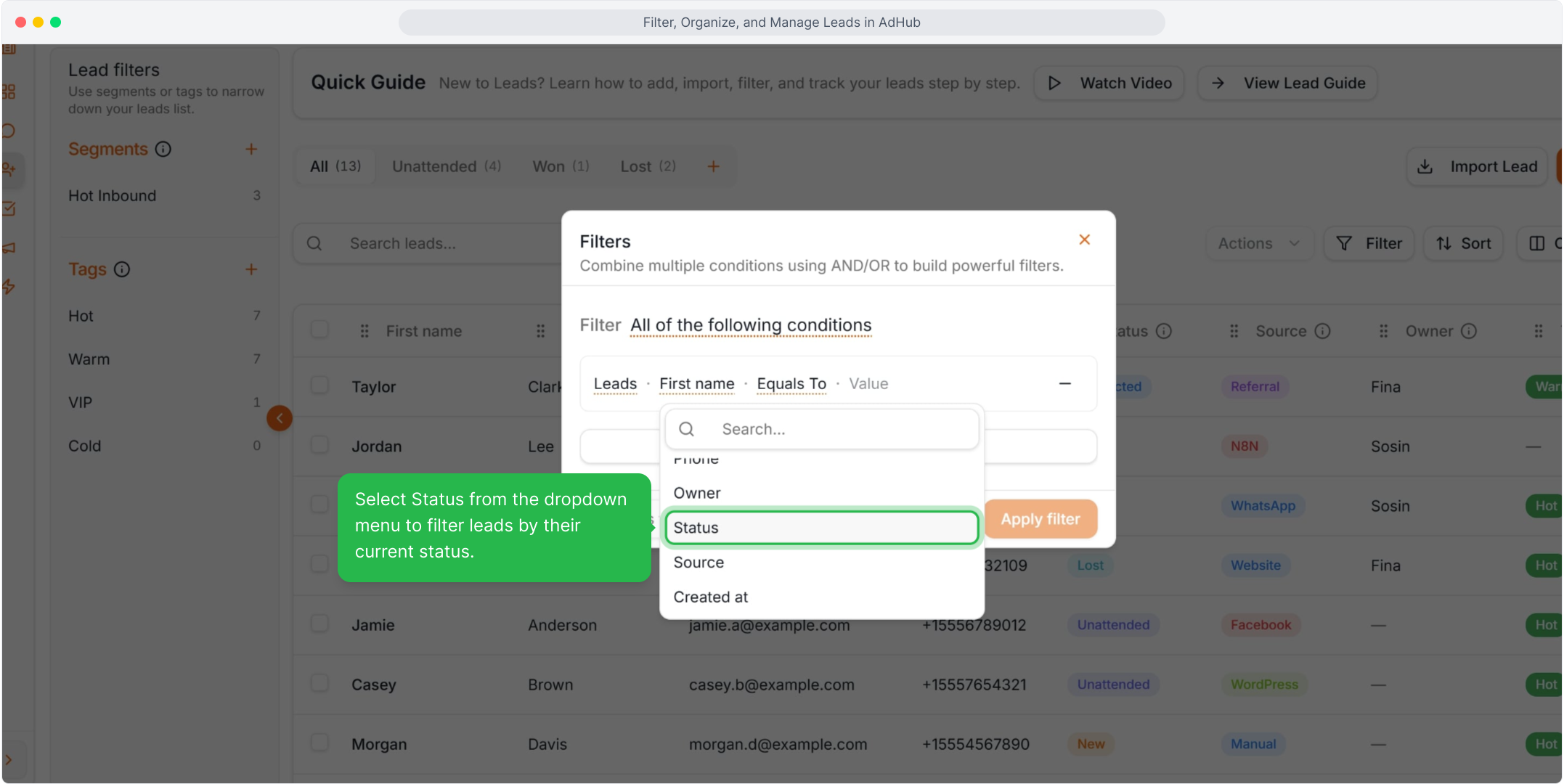
Step 4 — Choose the Status field
Select Status as the field to filter by.
Step 5 — Choose a value
Select a value, for example Unattended, and apply the filter.
Step 6 — Review the filtered list
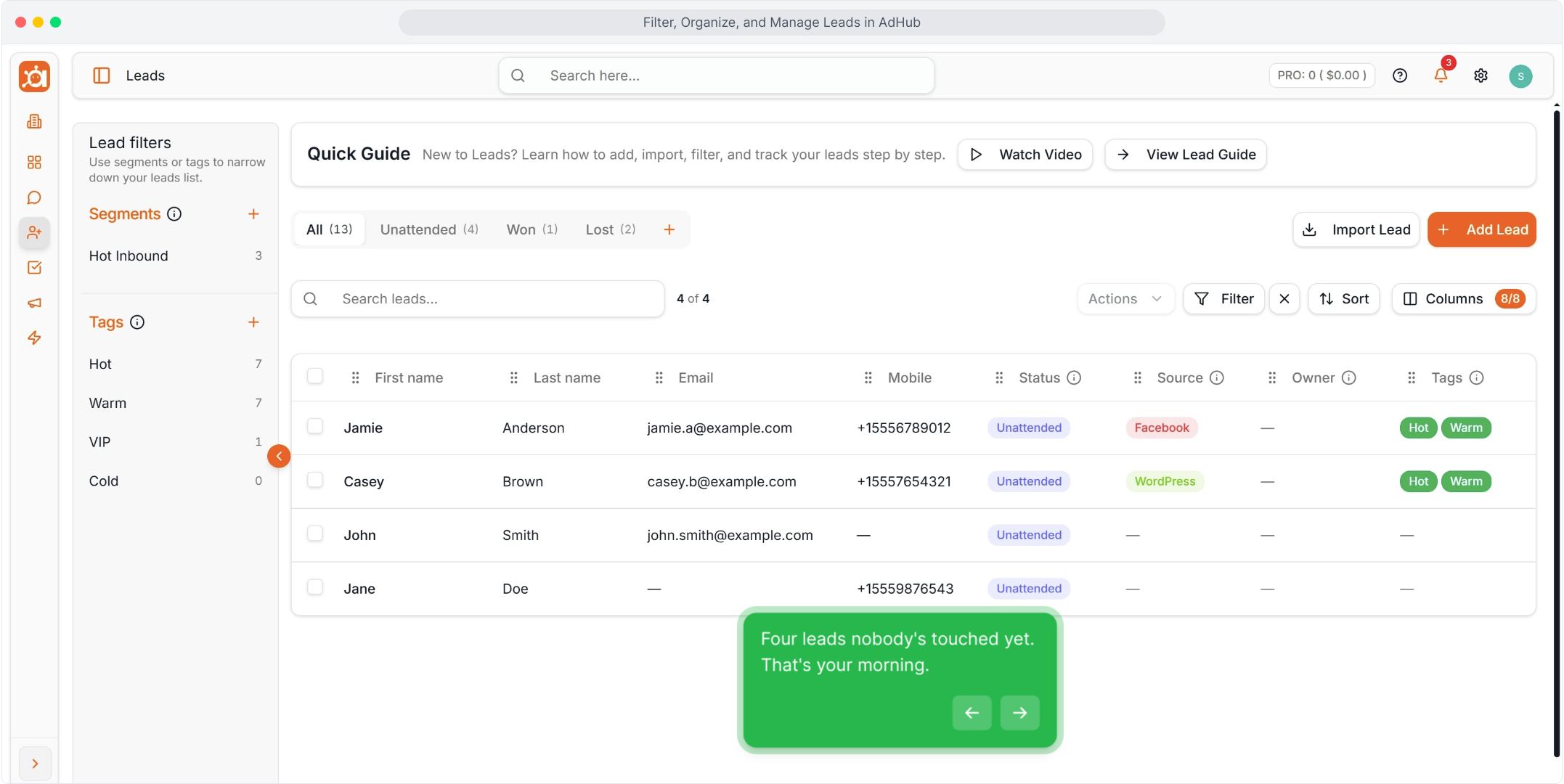
The list now shows only the leads that match your filter.
Step 7 — Narrow the list by tag
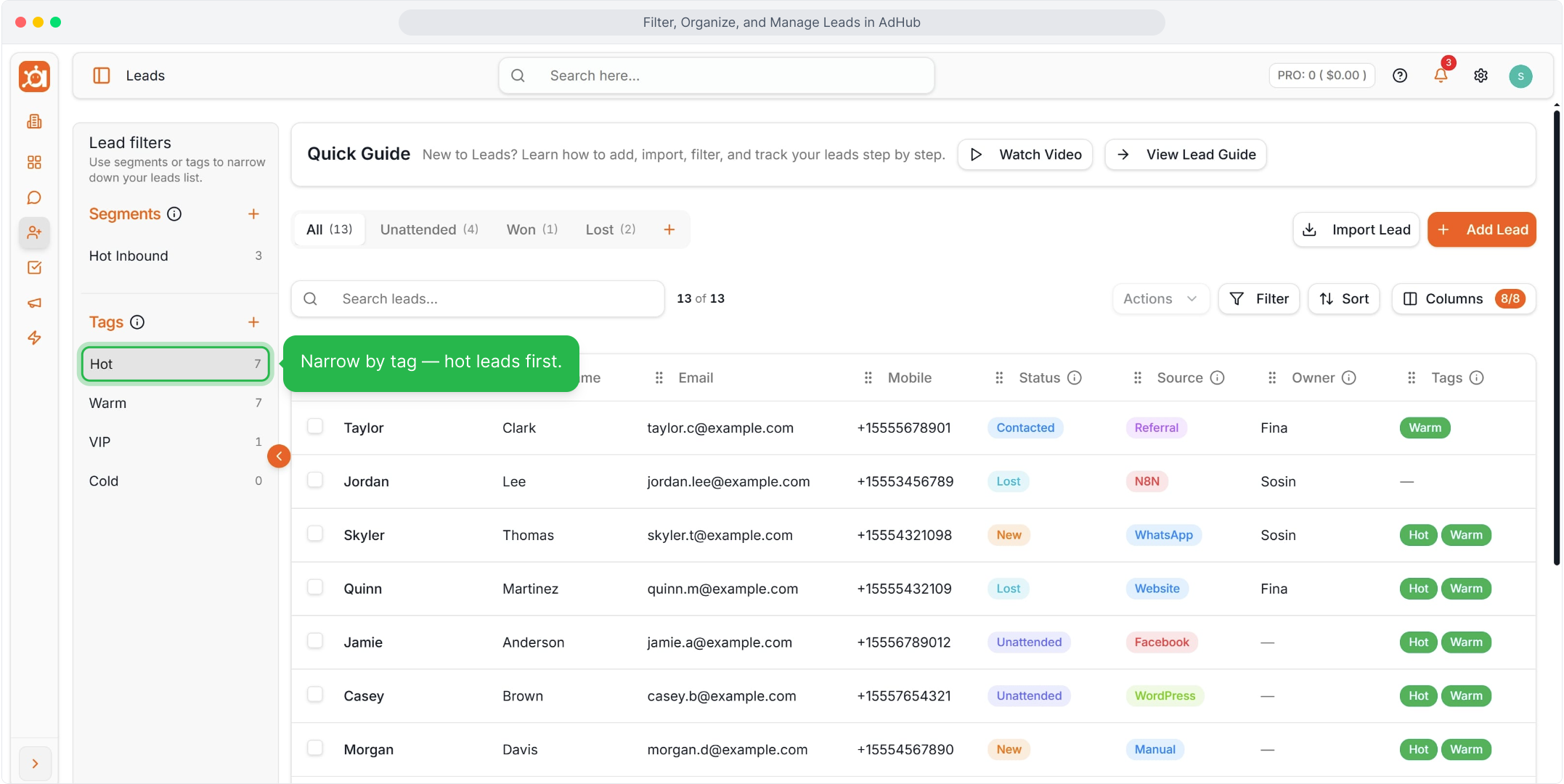
In the Lead filters panel, click a tag such as Hot to show only those leads.
Step 8 — Save the view as a segment
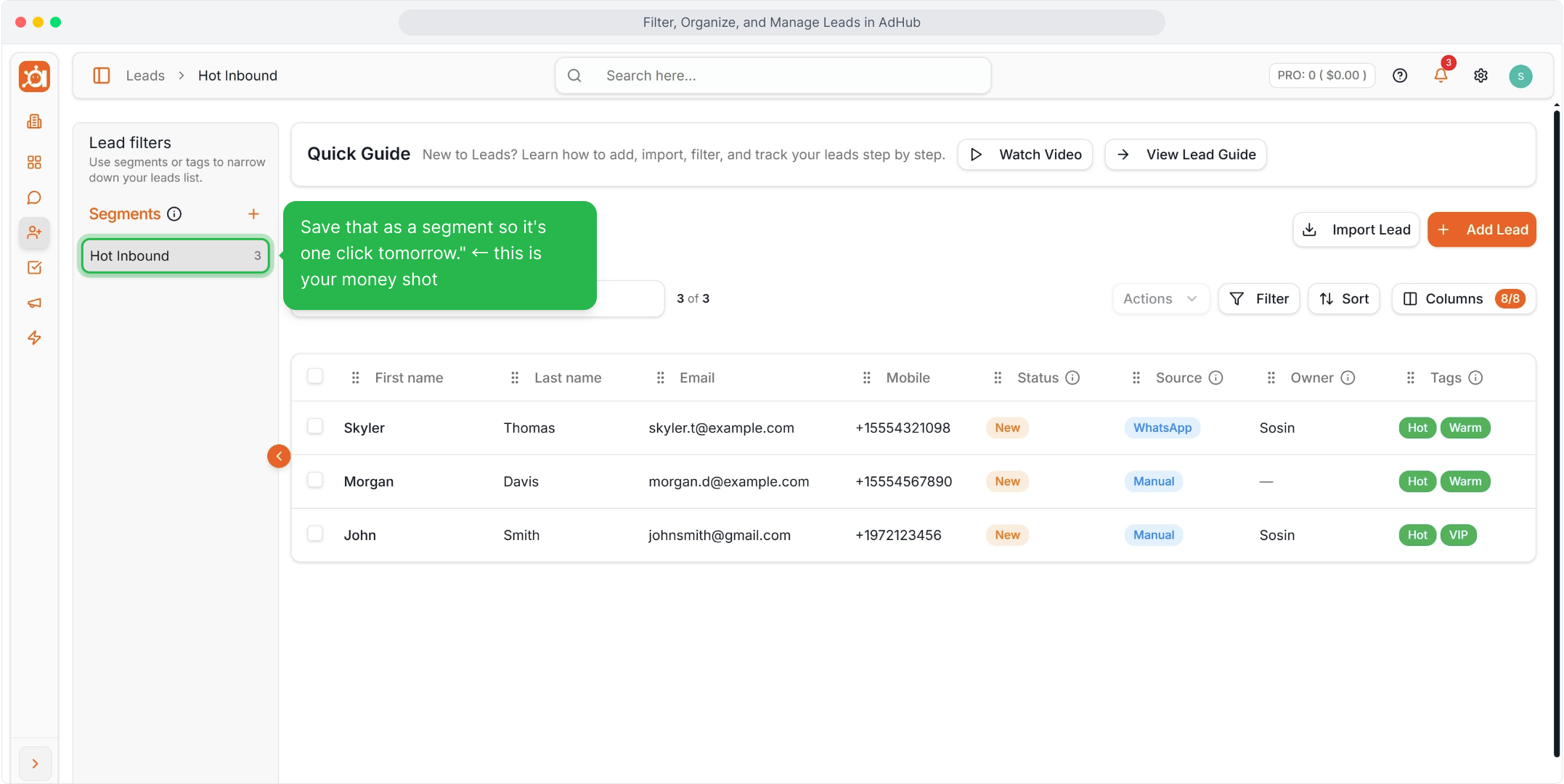
Save a useful filter as a Segment, for example Hot Inbound, so you can open it with one click.
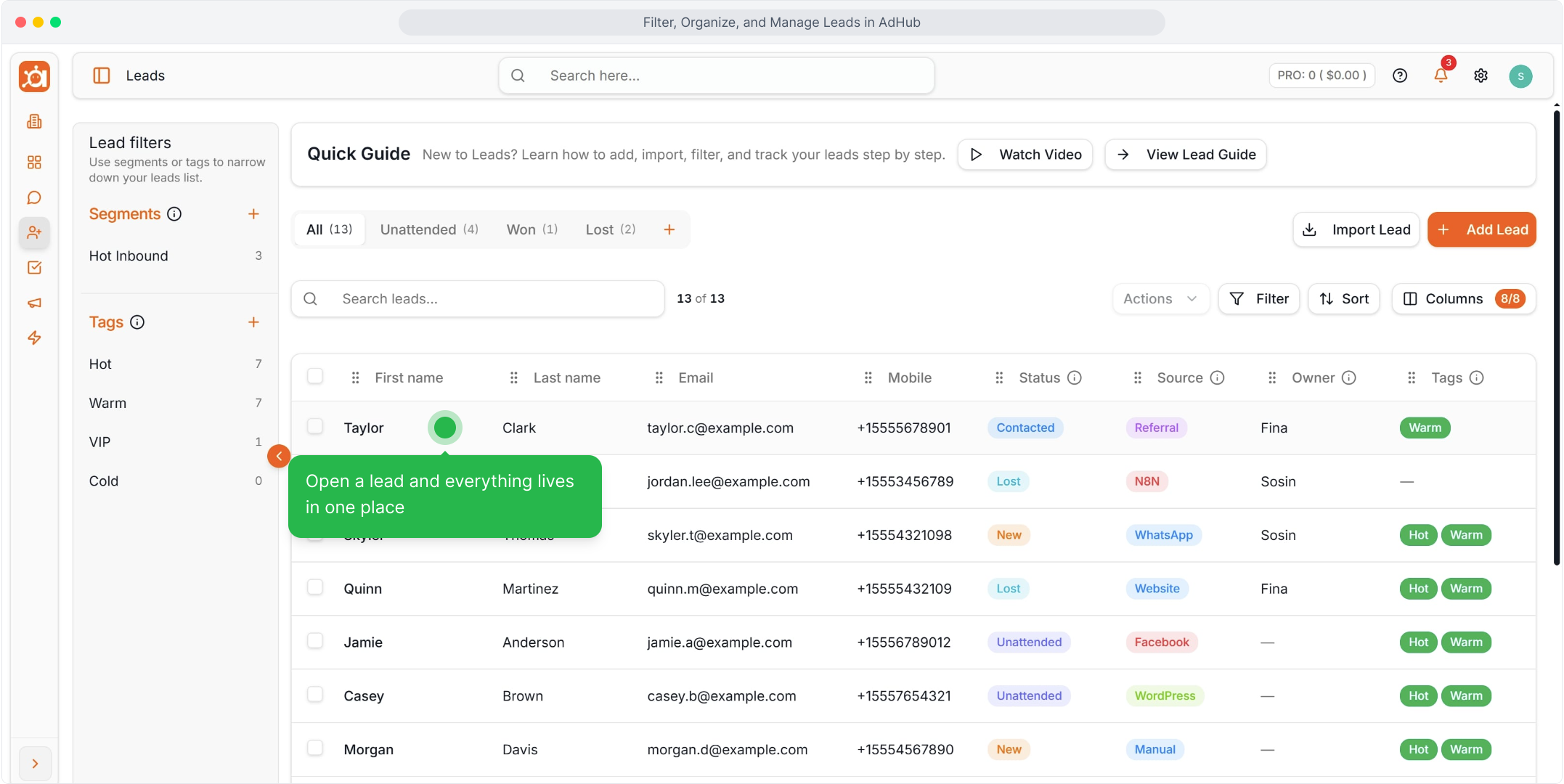
Step 9 — Open a lead
Click a lead to open its profile with chat, activity and contact details.
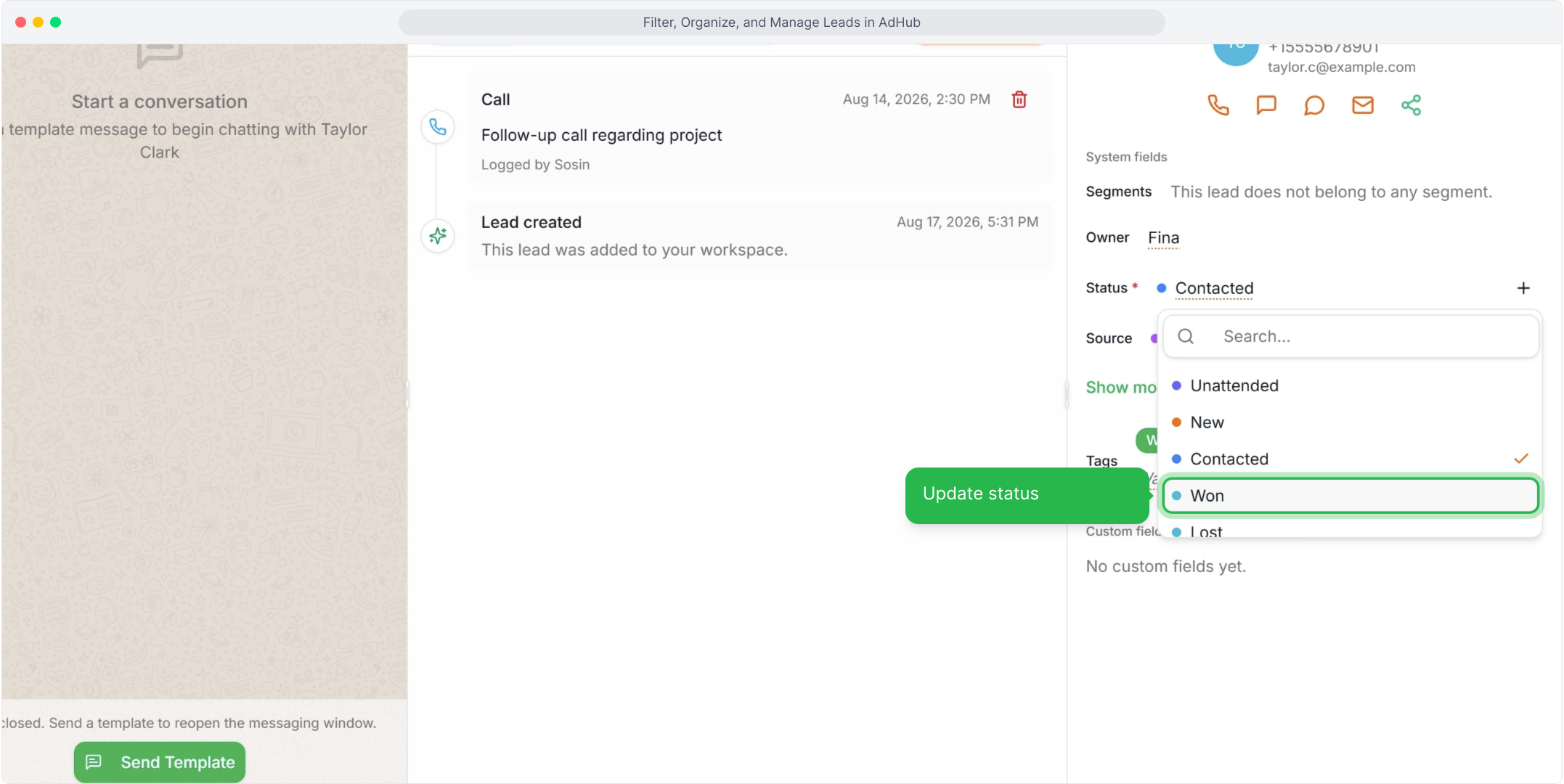
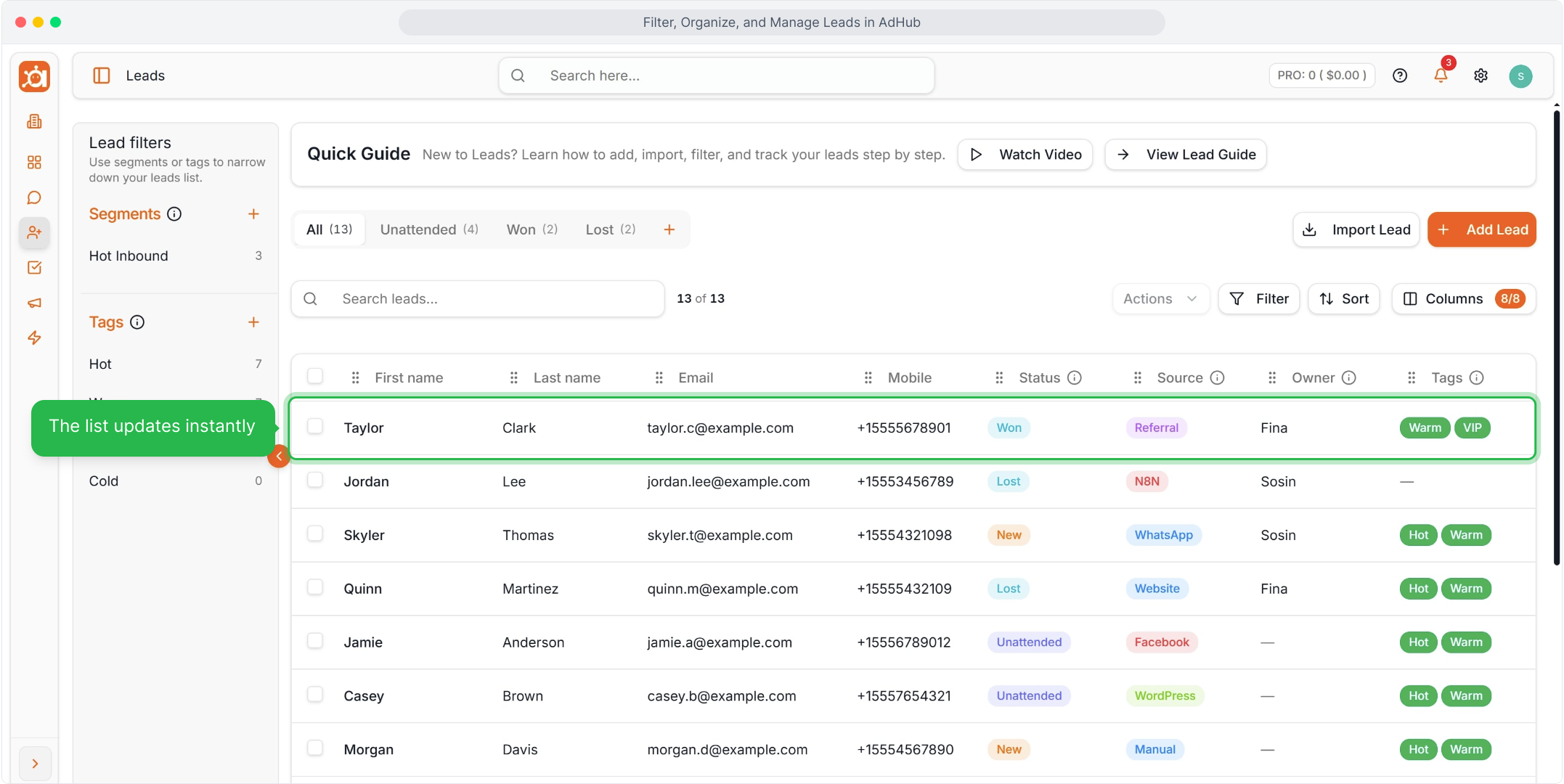
Step 10 — Update the status
In the profile, open the Status dropdown and select the new stage, for example Won.
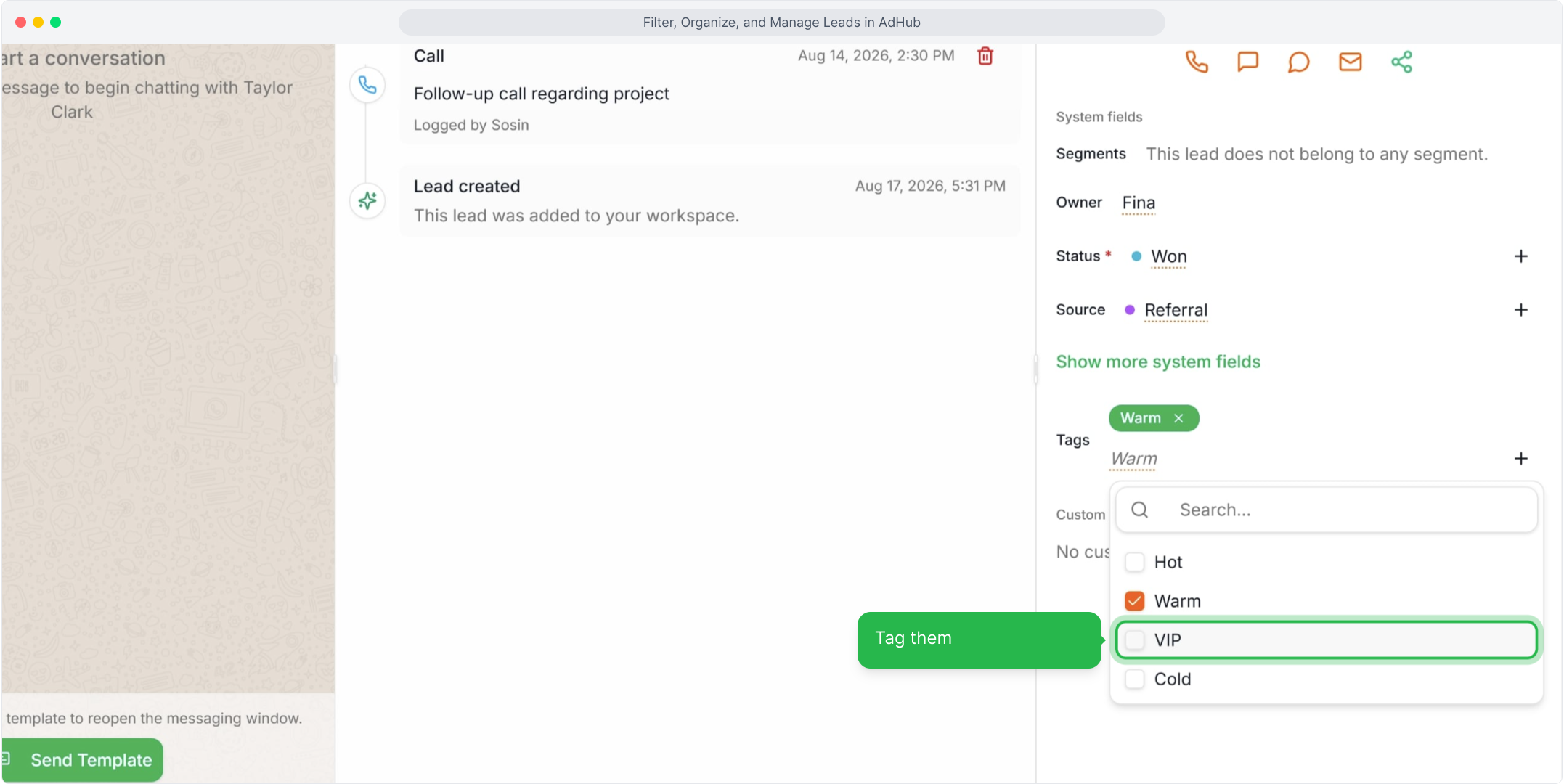
Step 11 — Tag the lead
Add or remove Tags in the right-hand panel of the profile.
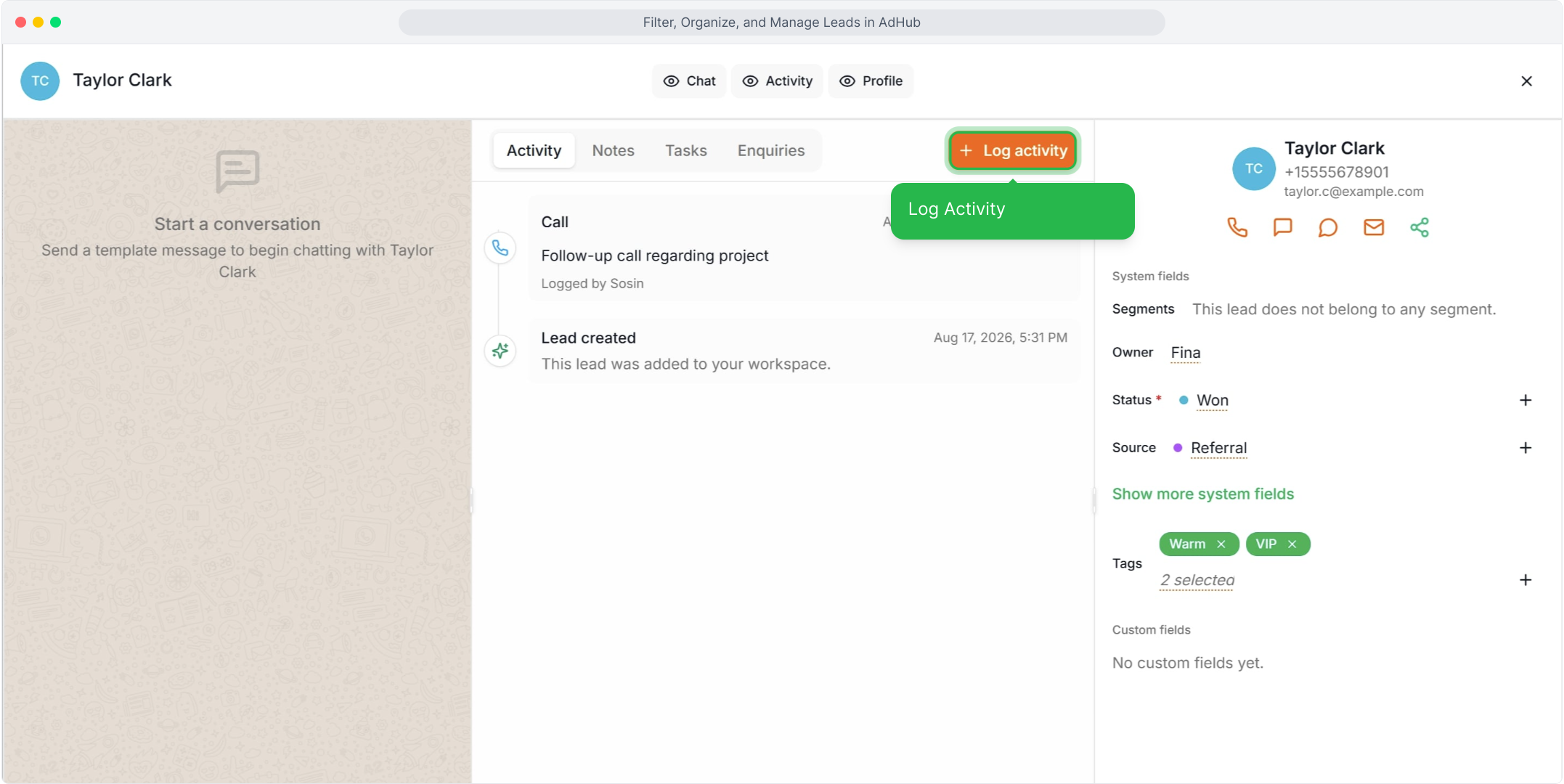
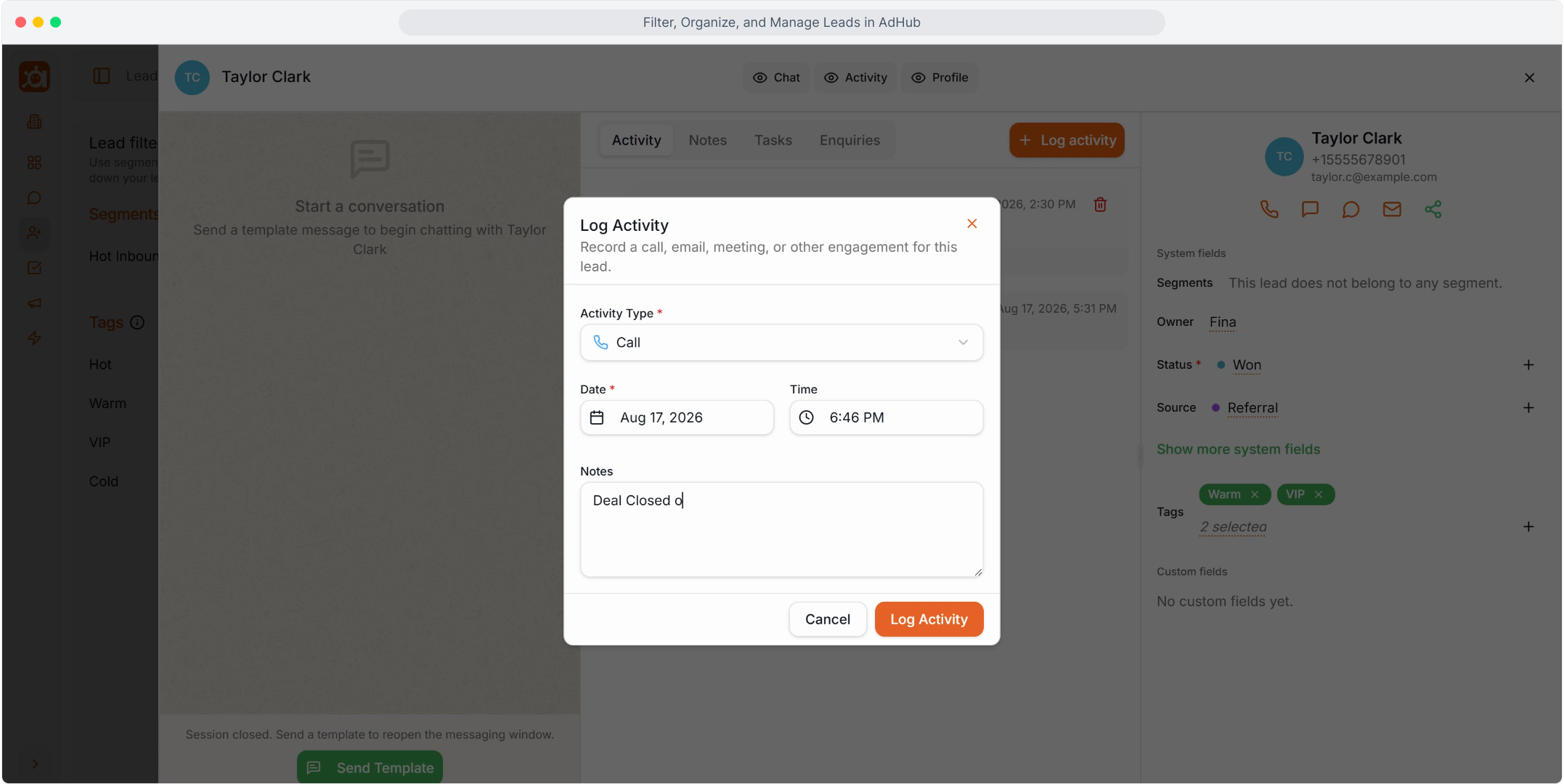
Step 12 — Click Log activity
On the Activity tab, click + Log activity.
Step 13 — Fill in the activity
Choose the activity type, set the date and time, add a note and save.
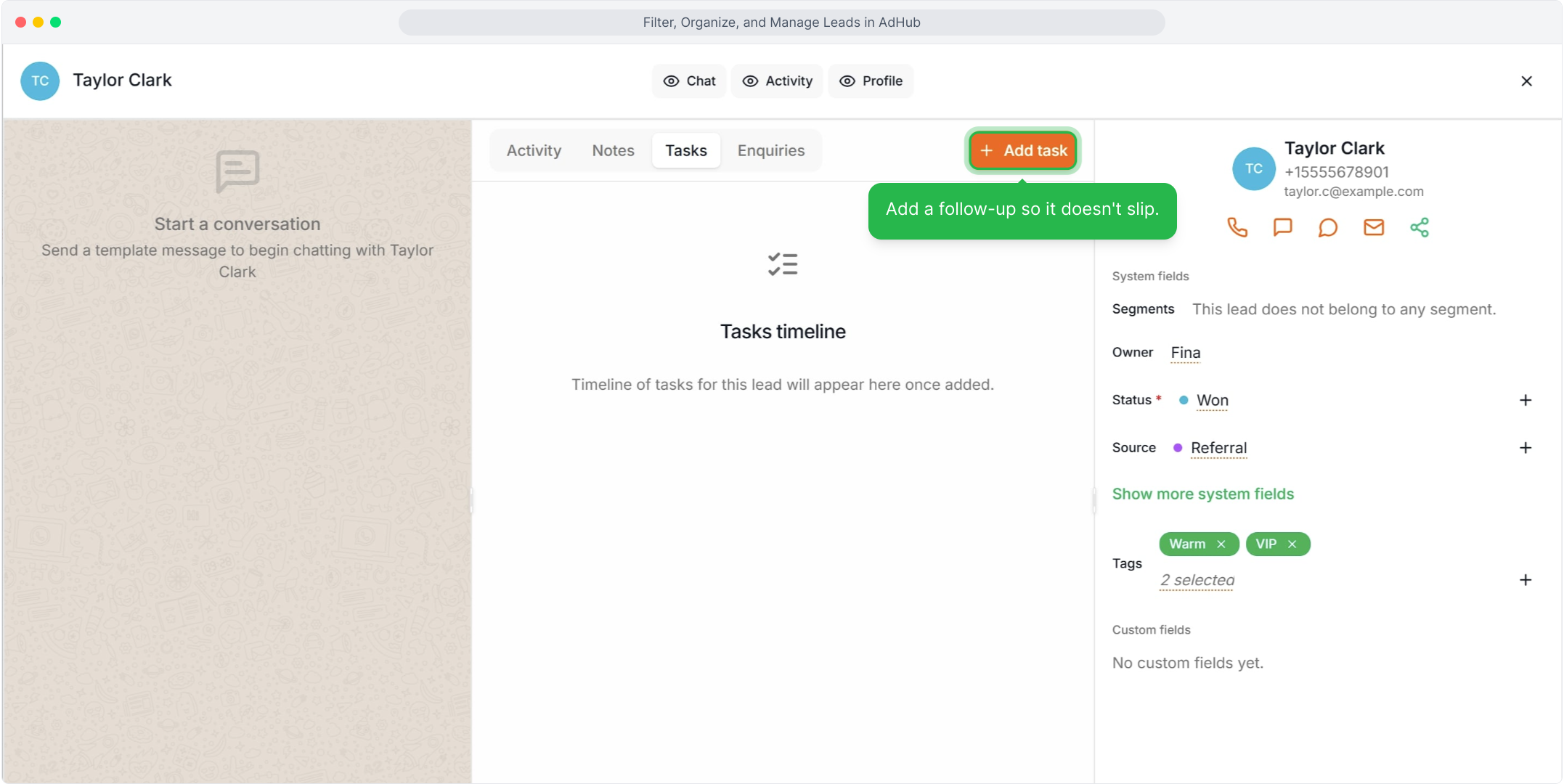
Step 14 — Add a follow-up task
Open the Tasks tab on the lead and click + Add task.
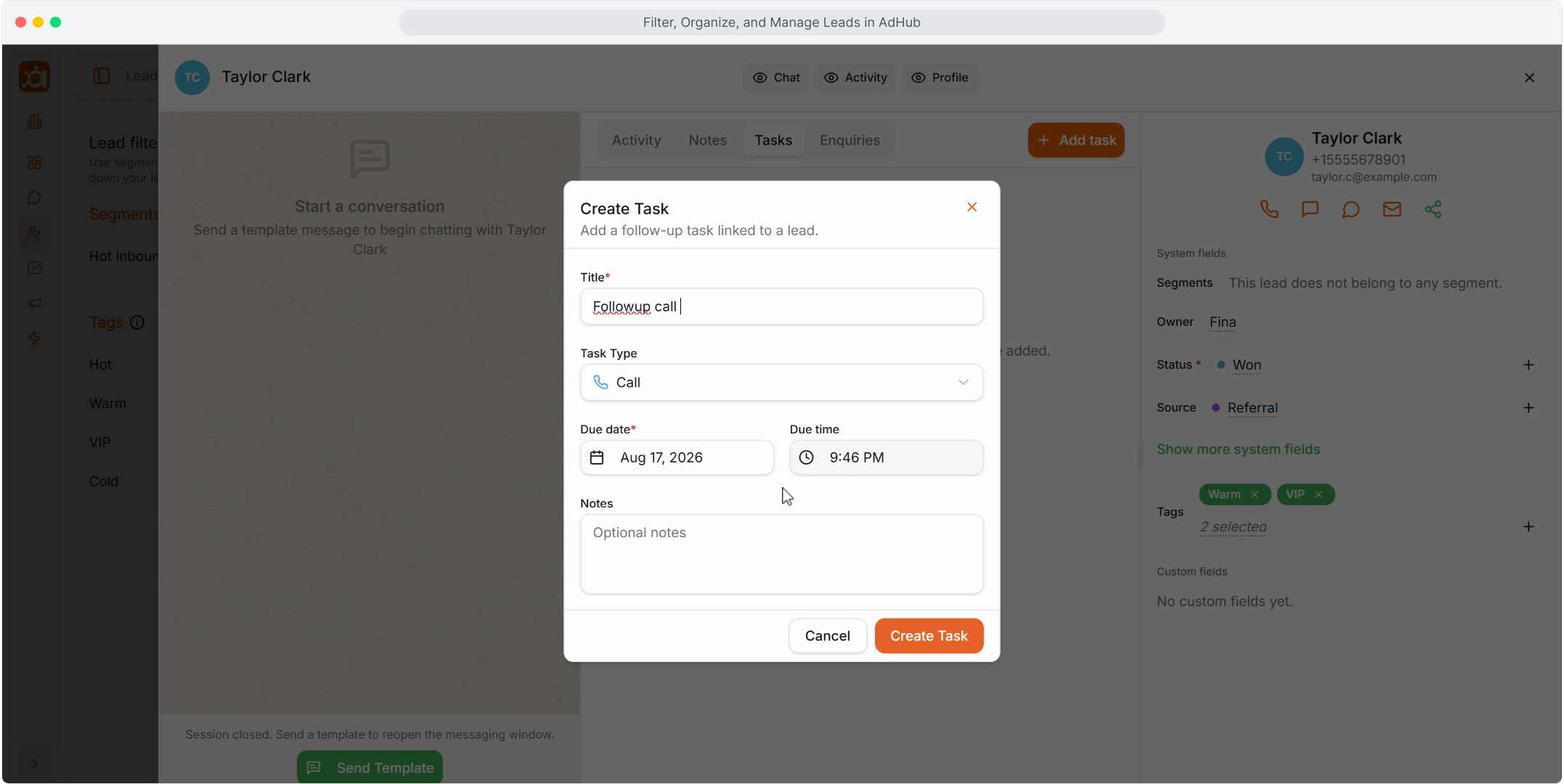
Step 15 — Create the task
The task form is already linked to this lead. Set the type, due time and title, then save.
Tip: Start each day with the Unattended filter to find leads that nobody has contacted yet.
What happens next
- The leads list shows the updated status, tags and counts right away.
- The lead's Activity tab keeps a record of each logged activity.
- If a lead is missing from the list, check which filters, tags or segments are applied.
Related articles
- How to create a segment
- How to create and manage tasks
Related articles
- How to import leads Upload a CSV file, map its columns to AdHub lead fields and review the import results.
- How to share an email template Send a saved email template to a lead from the lead profile using your own email app.
- How to add an email template Create a reusable email template with a subject, folder and content from Content Settings.
- How to create a segment Save a set of lead conditions as a reusable segment you can open with one click.
- How to run bulk actions on leads Select many leads at once to change their owner, apply tags, export or delete them.