Navigating the Dashboard
Updated
The dashboard is the first thing you see after signing in. It surfaces the information your team needs most: recent leads, pipeline health, and workspace activity.
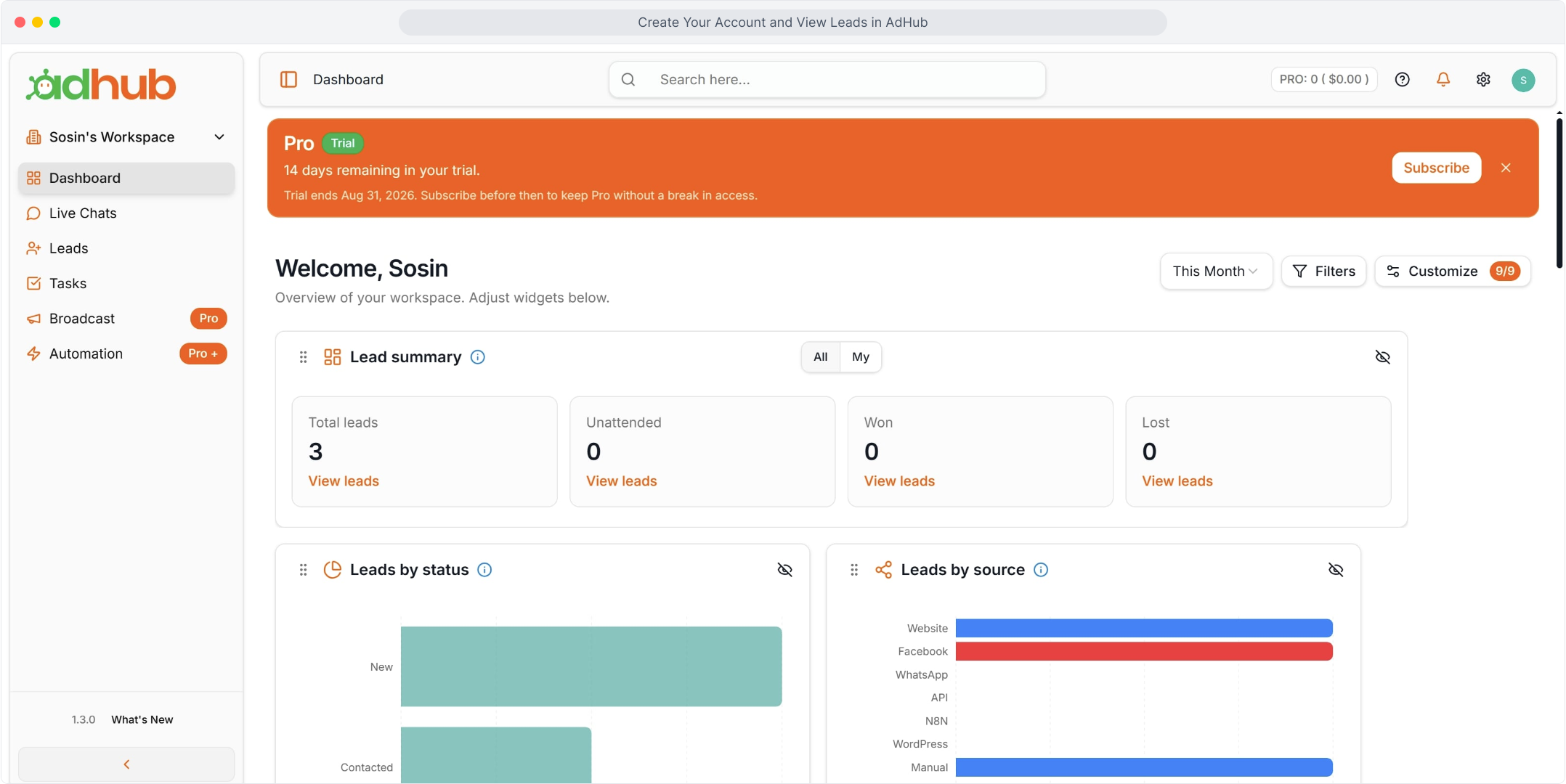
Dashboard is highlighted in the sidebar. Below the orange Pro Trial banner, Welcome introduces the workspace. Widgets on this screen: Total leads, Unattended, Won, and Lost (each with a View leads link), a Leads by status bar chart, and a Leads by source chart (Website, Facebook, WhatsApp, API, N8N, WordPress, Manual). Top-right controls: This Month, Filters, and Customize.
Key sections
- Sidebar — Dashboard, Live Chats, Leads, Tasks, plus plan-gated items such as Broadcast and Automation.
- Overview cards — high-level counts for total, unattended, won, and lost leads.
- Leads by status / source — how the pipeline and inbound channels look right now.
- Top bar — search, help, notifications, and Settings.
You can customize which widgets appear based on your role and permissions. Use Leads in the sidebar when you are ready to add, import, or filter contacts.
Related articles
- How to link your Google account Link your Google account in Manage Profile so you can sign in to AdHub with Google.
- How to sign up with email Create an AdHub account with your name, email address and a password, then open your new workspace dashboard.
- Welcome to AdHub A quick tour of your AdHub workspace and where to find things.