How to integrate the email service
Updated
Overview
Email Integration connects your email provider to AdHub so it can send notifications and follow-ups. This guide shows you how to enter your SMTP settings in Settings > Integrations.
Video walkthrough
Before you begin
Note: Keep your email provider's SMTP host, port, username and password ready. Your provider's help pages list these details.
Steps
Step 1 — Open Settings
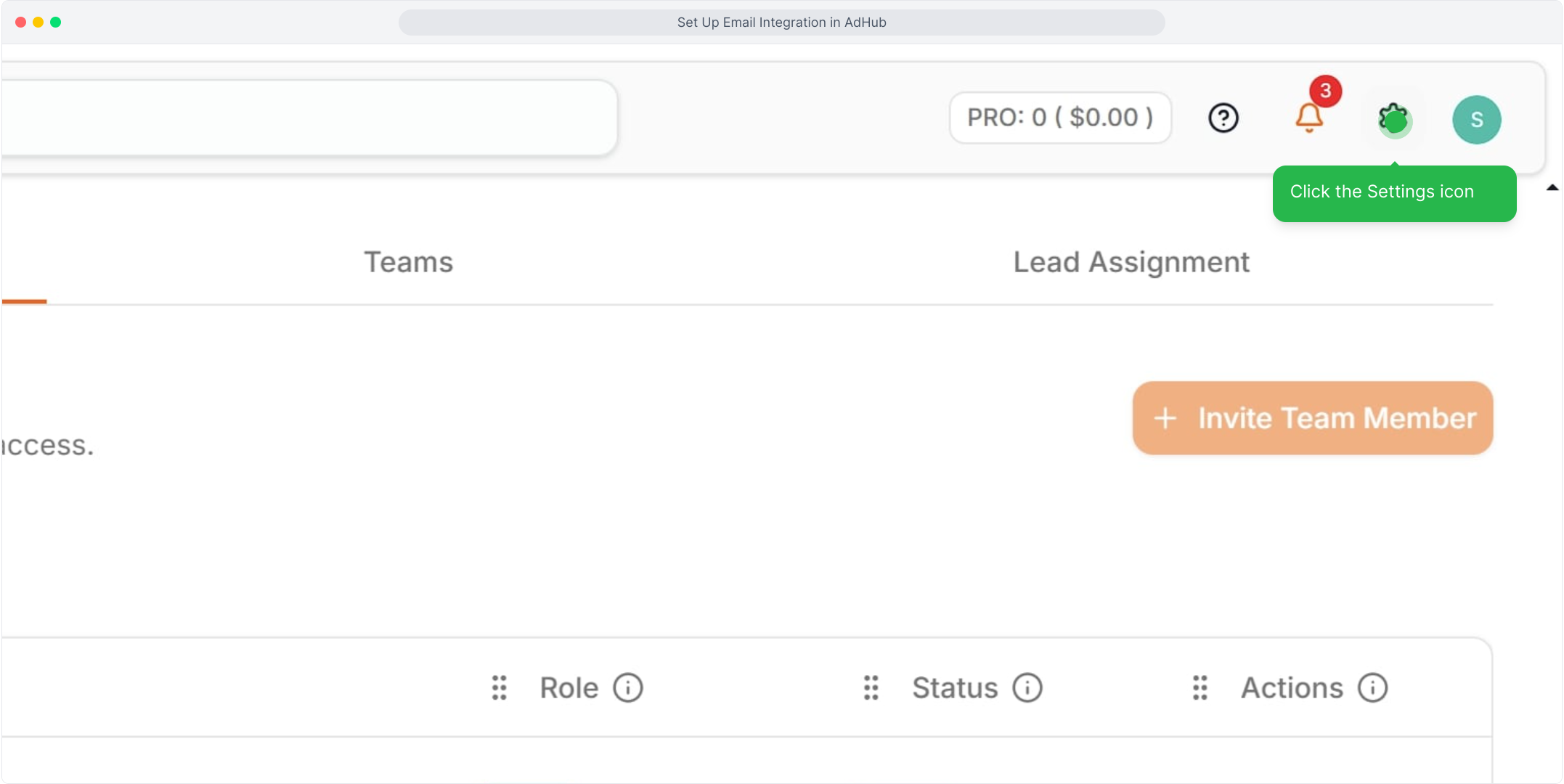
Click the Settings icon (⚙️) in the top-right corner of AdHub.
Step 2 — Go to Integrations
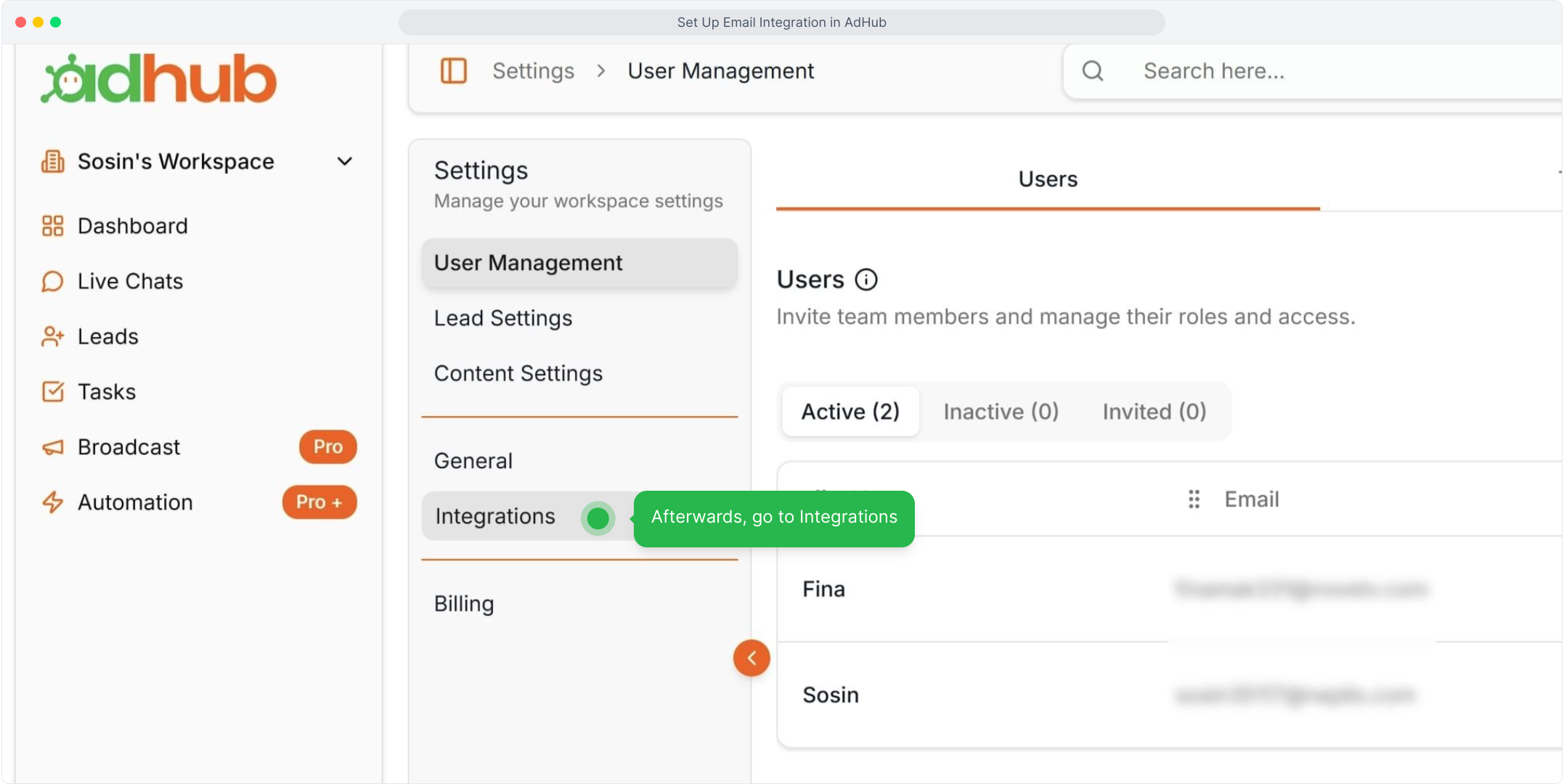
In the settings menu, click Integrations.
Step 3 — Open Email Integration
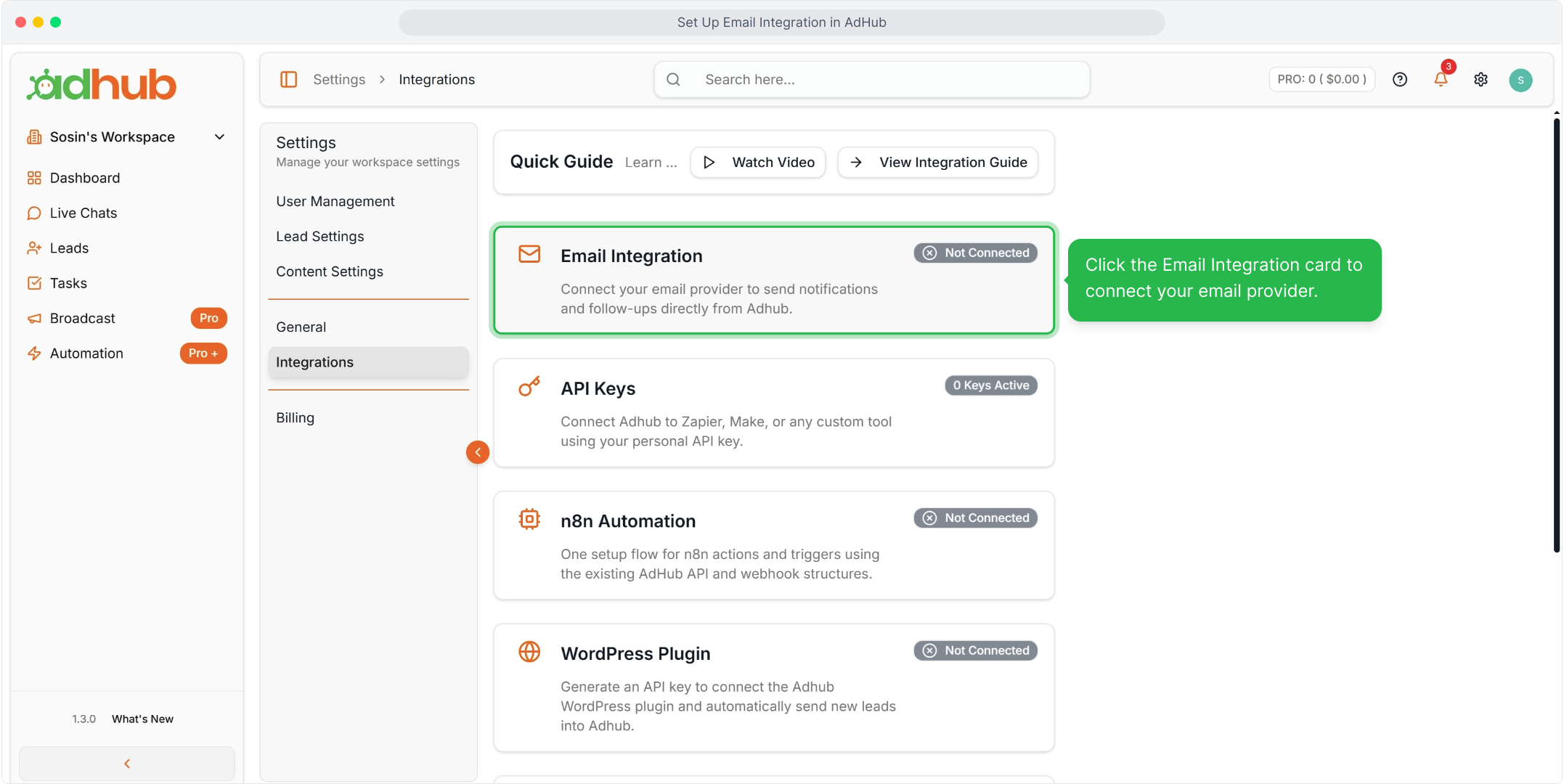
Click the Email Integration card to connect your email provider.
Step 4 — Review the SMTP fields
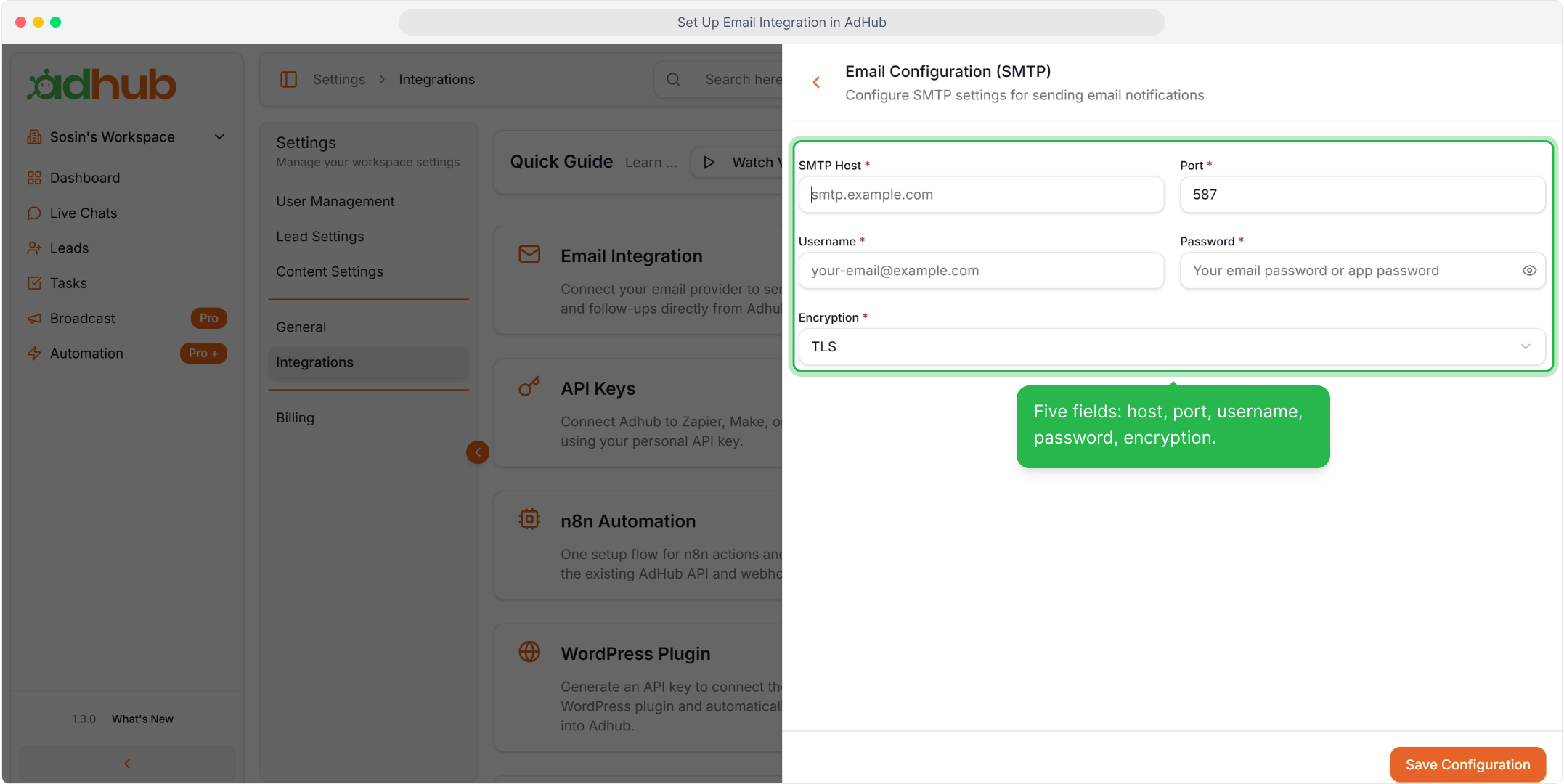
The Email Configuration (SMTP) page has five fields: SMTP Host, Port, Username, Password and Encryption.
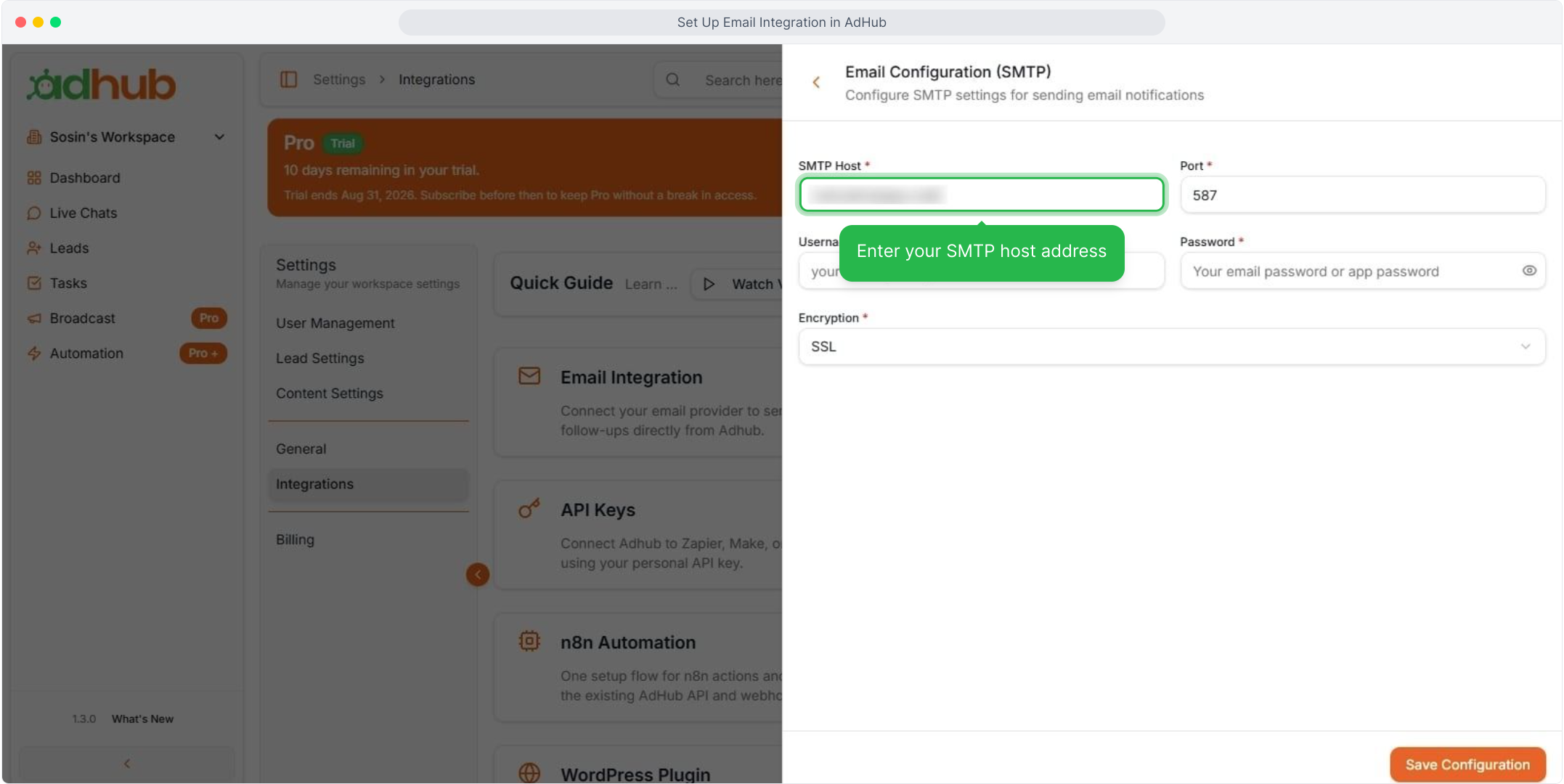
Step 5 — Enter the SMTP host
Type your provider's SMTP server address in the SMTP Host field.
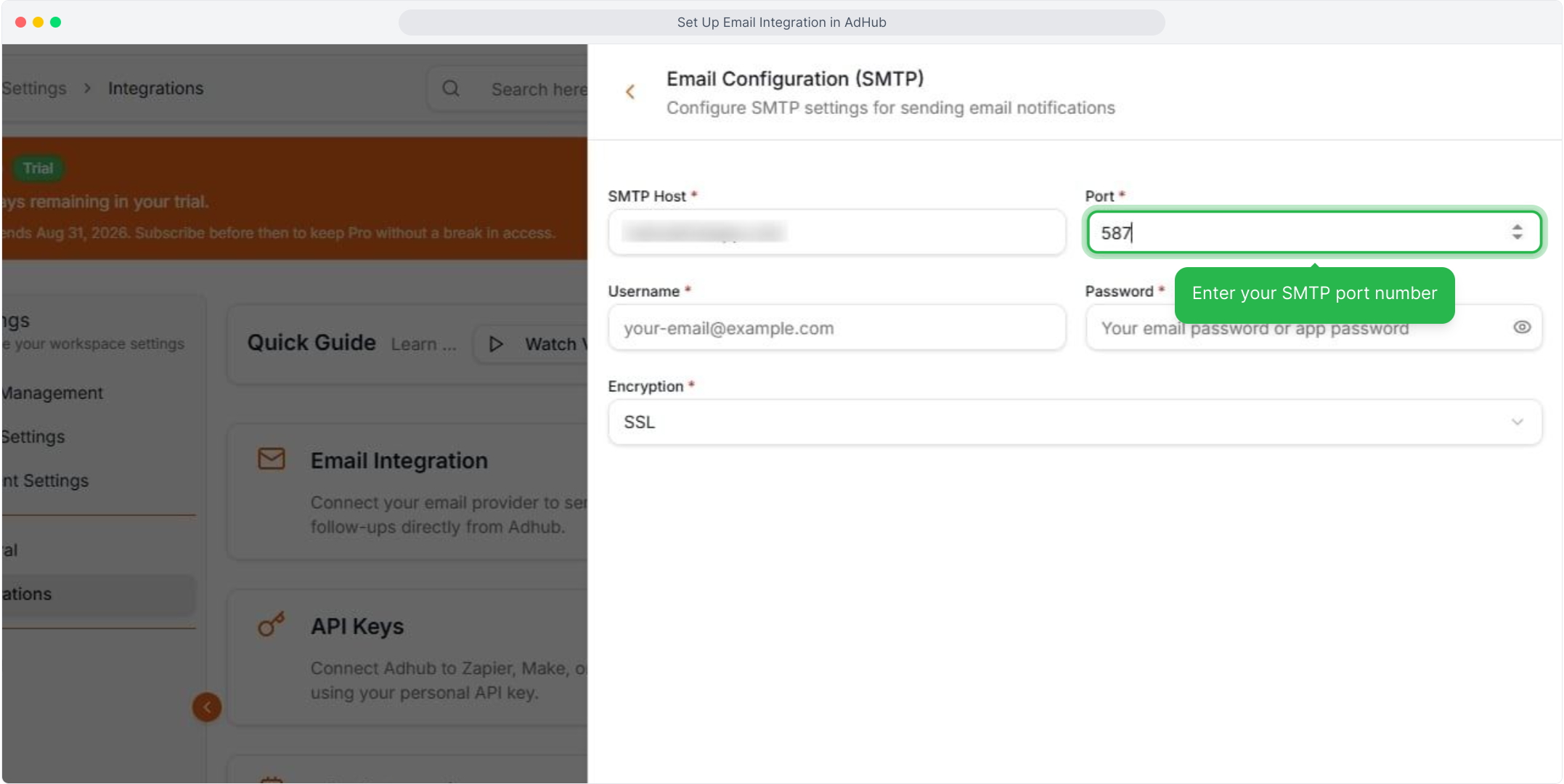
Step 6 — Enter the port
Type your provider's SMTP port number in the Port field.
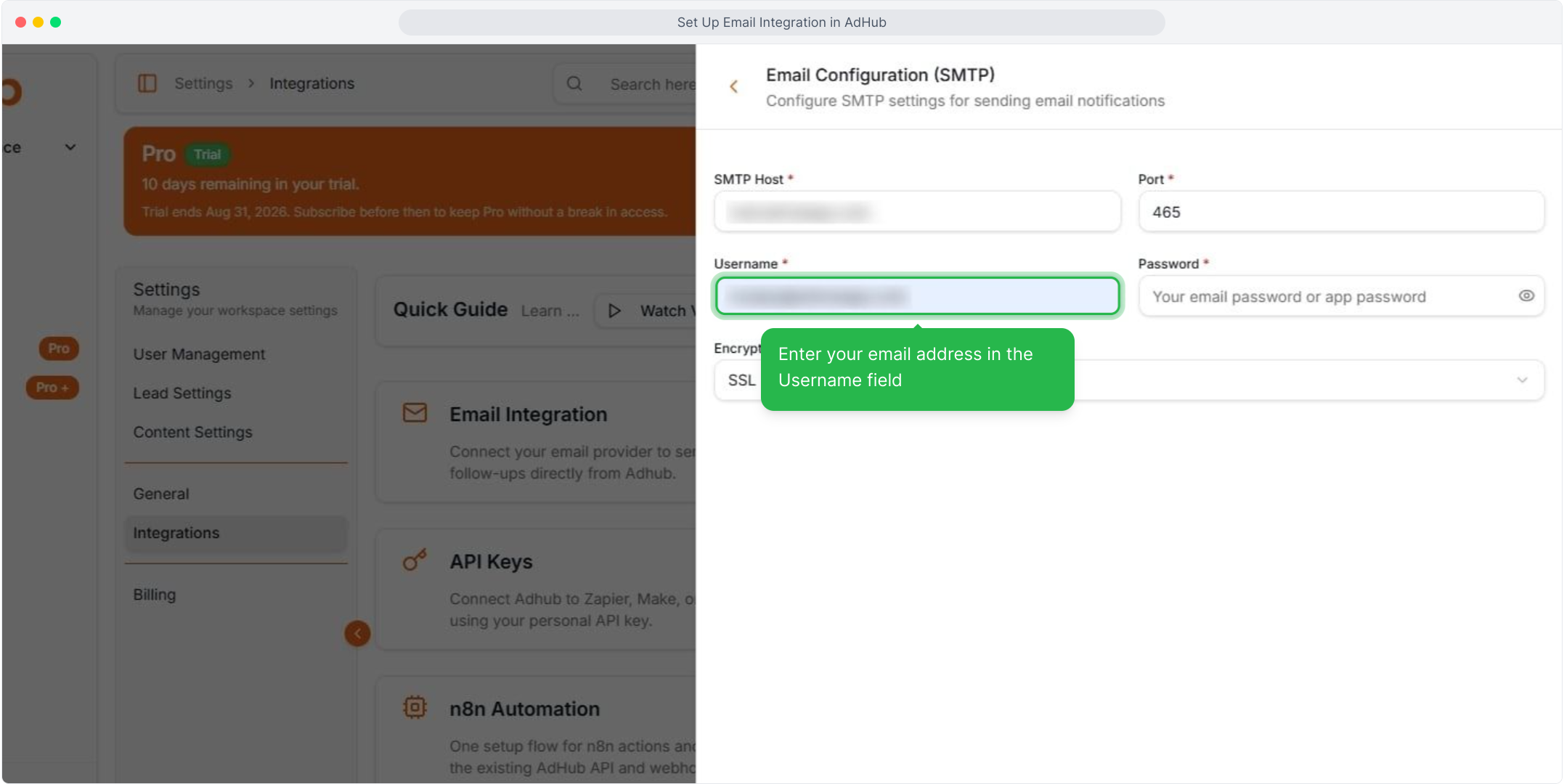
Step 7 — Enter the username
Type your email address in the Username field.
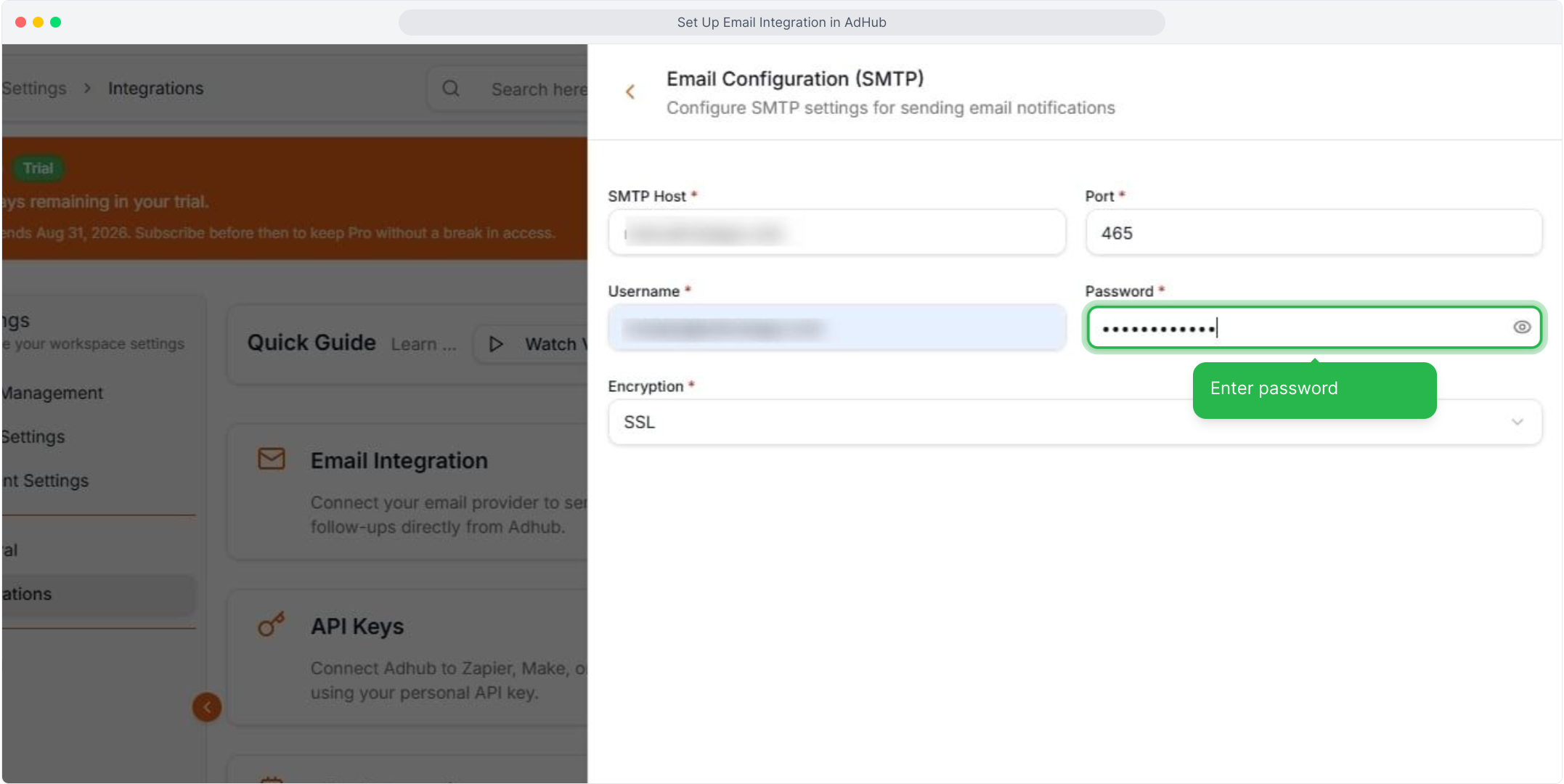
Step 8 — Enter the password
Type your email password or app password in the Password field.
Step 9 — Choose the encryption
Open the Encryption dropdown and select the option that matches your port.
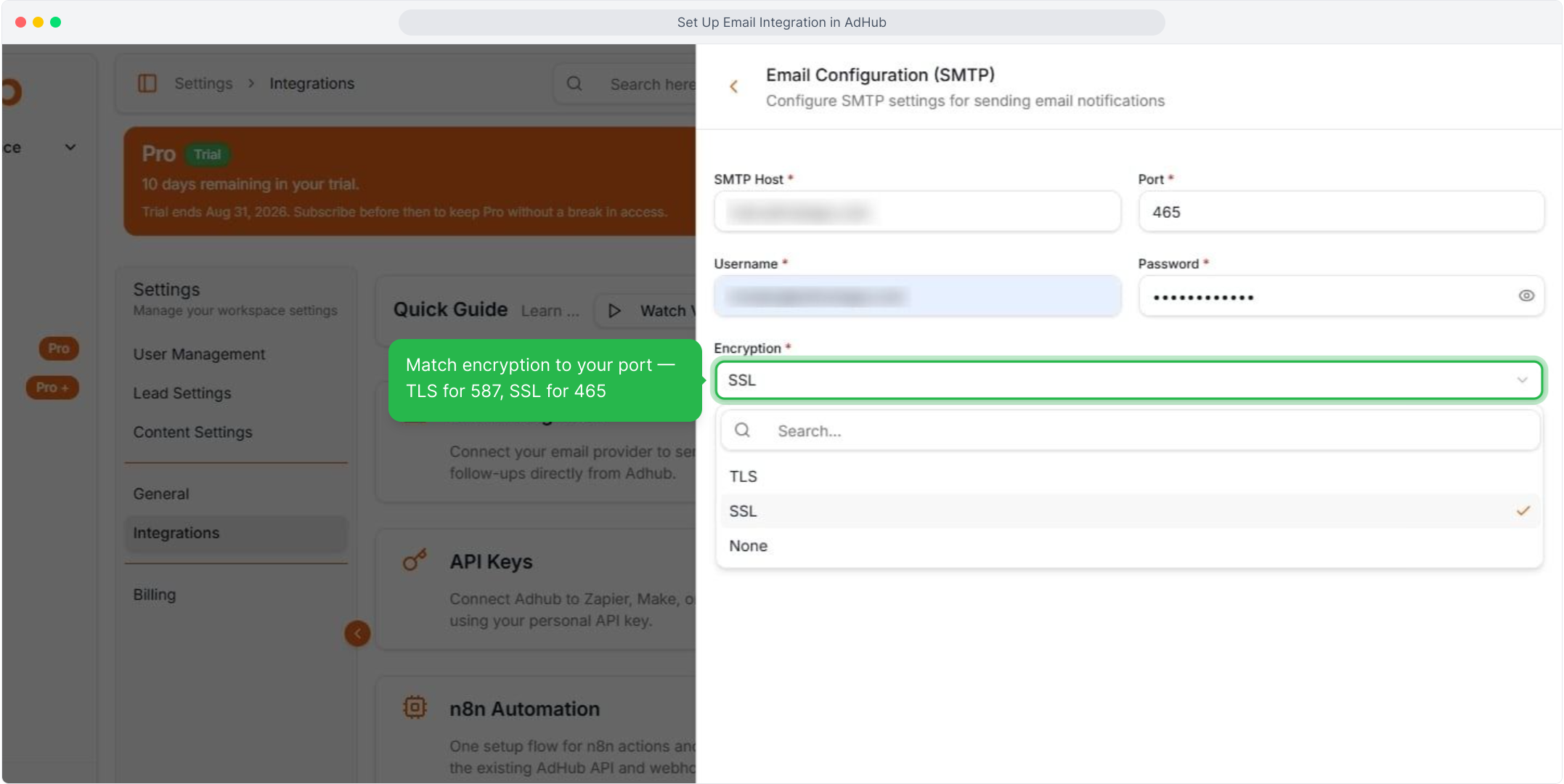
Tip: Use TLS with port 587 and SSL with port 465.
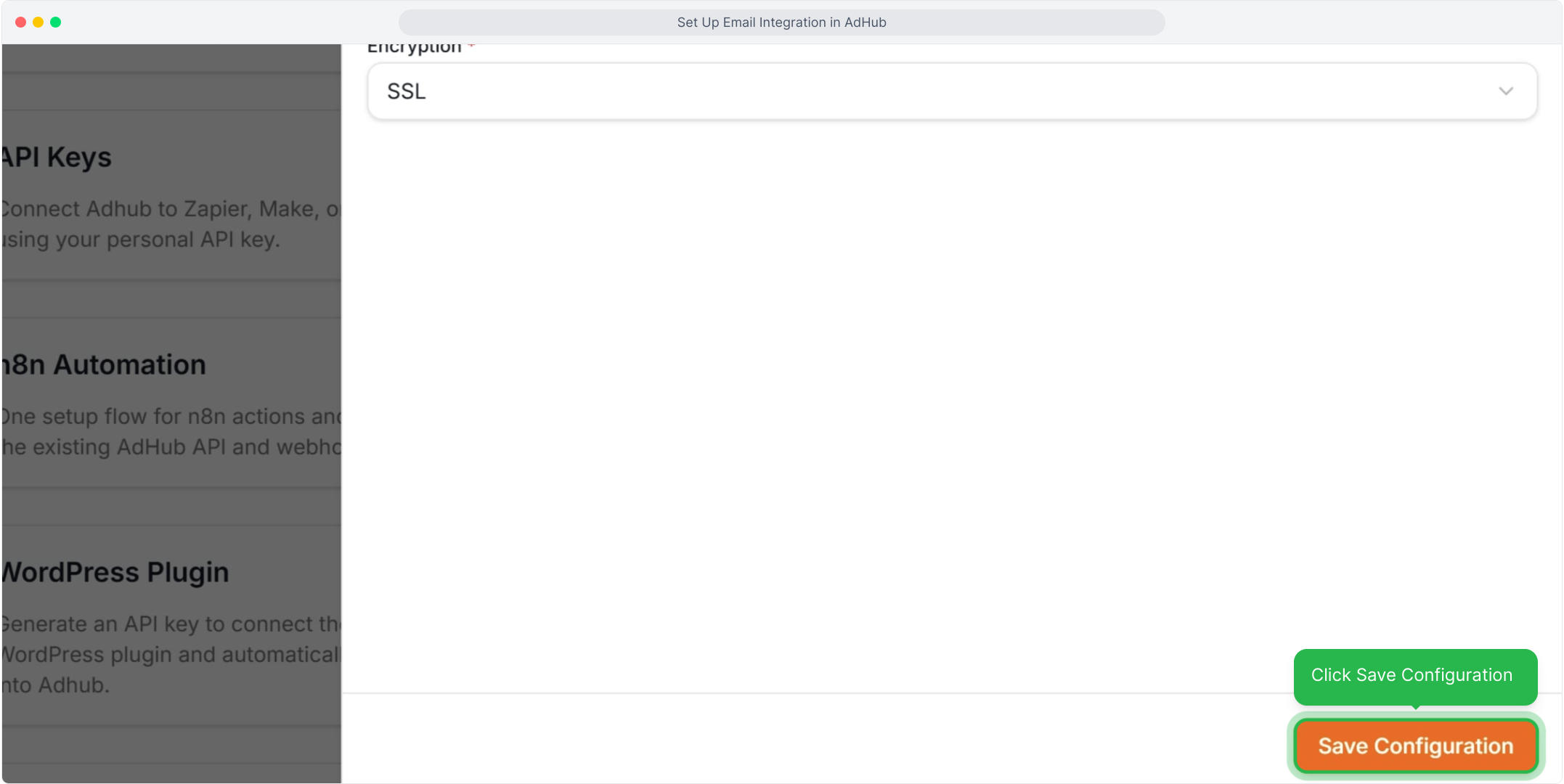
Step 10 — Save the configuration
Click Save Configuration at the bottom of the page.
What happens next
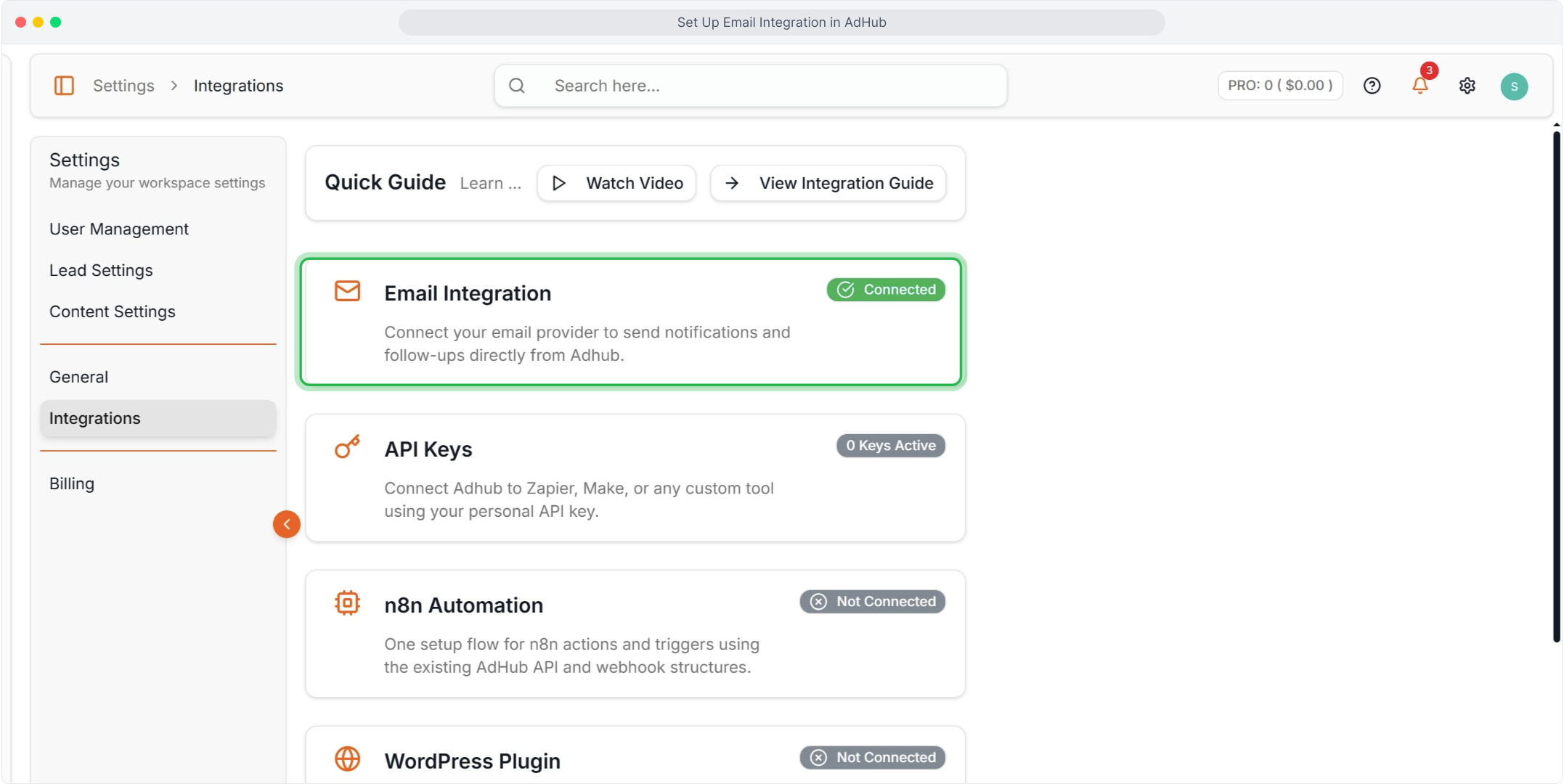
- The Email Integration card shows Connected.
- AdHub can now send notifications and follow-ups through your email provider.
- If the connection fails, check the host, port and encryption, and use an app password if your provider requires one.
Related articles
- How to integrate with n8n
- How to add an email template